Financial Planning for Adults Age Group Between 20-30 Years
- June 11, 2026

March 29, 2026
The Aadhaar card is an identification number that contains a total of 12 digits and which was established by the Unique Identification Authority of India, or UIDAI. The Aadhaar card is based upon identity information including name, date of birth, gender, address and so forth of the individual to whom it is assigned, and backed by biometric information such as fingerprints and iris scans.
In recent times, Aadhaar has become one of the most frequently utilised identification documents in India due to its wide-ranging applications for establishing identity across different services provided by both the government as well as private sector organisations. According to UIDAI, the Aadhaar document and the available services which can be downloaded through it belong to a much wider category of identity ecosystem.
It is not only used as an identifier, but people use the Aadhaar card in their daily lives while:
Aadhaar is also extensively used in the financial domain for verifying someone’s identity, and usually, topics like loan verification on aadhaar card comes up in fintech discussions related to loans and similar matters.
Aadhaar is the document required first while applying for a personal loan, checking one’s credit score, and going through identification processes related to the personal loan repayment.
Inclusion-oriented services use Aadhaar to ensure the ease of onboard processes for people seeking loan approval with low income and need less paperwork.
It is worth mentioning that Aadhaar cannot be the determinant of loan approval since there are criteria to be met concerning income, ability to repay the loan, etc.
However, it contributes to the standardisation of the process of identity verification, making it more structured and clear for the applicant.
There is one aspect that makes Aadhaar relevant nowadays, which is the presence of both physical and digital forms of it. Residents can have Aadhaar in the form of a letter sent on paper, a PVC card, or even a digital copy saved on their smartphone.
After using the digital form of Aadhaar, it is only natural to be faced with the problem of aadhar card password since the document itself cannot be simply opened as other files on the device.
E-Aadhaar refers to the electronic form of Aadhaar. According to UIDAI, it can be defined as a password protected electronic form of Aadhaar, digitally signed by UIDAI, and also UIDAI says that a downloaded Aadhaar is equivalent to the original Aadhaar letter.
Put simply, what this means is that it is not just an electronic photograph or scan of the letter but an officially recognised form of identity, which has the same standing as its printed counterpart when used as per the rules.
This is one of the many reasons why e-Aadhaar has come to be so extensively used. People often find themselves in situations where quick access to their identity papers is needed, like when they are:
In such times, having the option to download Aadhaar is a genuine relief. It reduces dependency on photocopies and makes identity access much more practical in a mobile-first environment.
E-Aadhaar is also more convenient in terms of storage. A person can store this Aadhar card on his safe phone, computer, or any other digital wallet of document. This will become very important for students, salaried persons, freelancers, senior citizens, and those who stay far away from their native places.
Even for a person who is on a dynamic path in the field of digitisation, like applying for 1000 personal loan online, it will be important to have immediate access to an identity-proof document.
However, the convenience offered by e-Aadhaar is balanced by the security factor as well. Once a person downloads the file and tries to use it, he will find himself confronted with the term e aadhar password. This marks the beginning of confusion not due to complexity, but since you do not know that the document has been encrypted for security purposes.
The answer to why e-Aadhaar needs a password is straightforward, since it involves very private information. An Aadhaar download can have a:
Without a password to safeguard the data from being accessed easily by others, there would be additional risk involved in its use. The UIDAI has been clear in calling e-Aadhaar a password-protected digital copy of Aadhaar, indicating that the lock is part of the software security feature.
Consider some common ways that people download their documents these days:
If anyone accessing the downloaded document had immediate access to it by merely clicking it, chances of accidental access will increase significantly.
Thus, whenever users inquire about the password to access the aadhar card, one thing needs to be remembered: the password is a protective step to give another level of control to the user.
The provision of such security features is particularly advantageous in a nation where Aadhaar enjoys so much usage. Such security measures can come up in:
However, password-based security measures are not a solution to all data privacy problems; nonetheless, they do serve as barriers to ensure that no one mindlessly opens a downloaded file.
Also, this helps users take time before releasing it. A lot of individuals tend to pass PDF documents through chats with little or no second thoughts. The encrypted document would make users aware of what they are passing on and who will have access to it.
It is a two-step process as follows:
Therefore, when individuals come across such an encrypted document, they tend to Google “aadhar card password” due to lack of understanding.
Firstly, the aadhar card password is not a randomly generated password at the moment of downloading it. Moreover, it is not a personalised password set up by the user himself/herself.
As per UIDAI rules, it comprises the initial four letters of the person’s name in capital letters, and the birth year of the individual. Examples are given by UIDAI for names consisting of less than four characters as well as for those having punctuation marks within them.
In other words, the password is based on identification, and is connected with the data provided in Aadhaar.
Suppose you have Rahul written on your Aadhaar, and your year of birth is 1995. Then, your password will usually appear like RAHU1995. In case your name is less than four letters, then use only those letters.
Here lies the mistake made by many people who assume that the password must be sent to their mobile number via SMS or e-mail, or even through OTP. This question arises in their minds as they try to recall the correct password. The question ‘what is aadhar card password’ pops up at this very moment.
However, logic remains constant and straightforward once it is known. The same logic also resolves the frequently asked query regarding what is password of aadhar card, eliminating the requirement of a separate password recovery procedure.
The key benefit of such an approach is its consistency. Once you have understood the logic, you will not have to resort to any mnemonic techniques or use a password manager program.
Instead, you will be able to generate your password by using information that you already possess, but only if it is entered in the correct format expected by UIDAI. This very format also serves as the aadhar card password pdf whenever one wishes to open their downloaded Aadhaar card.
Aadhaar password format is quite easy to decipher if one breaks it down into two sections.
Examples by UIDAI are helpful because it illustrates how consistent the rule is despite differences in name spelling.
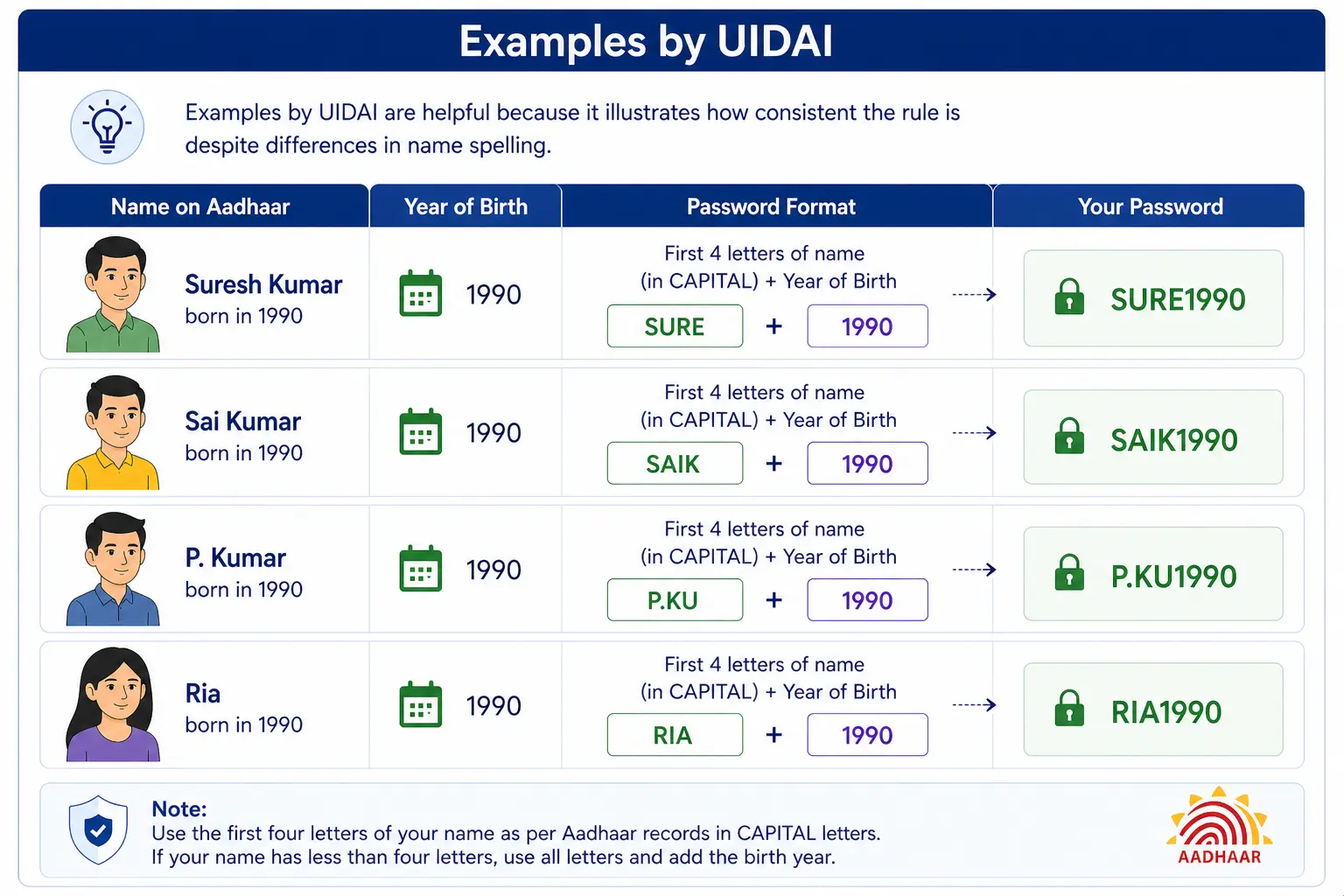
| Name on Aadhaar | Year of Birth | Password |
|---|---|---|
| Suresh Kumar | 1990 | SURE1990 |
| Sai Kumar | 1990 | SAIK1990 |
| P. Kumar | 1990 | P.KU1990 |
| Ria | 1990 | RIA1990 |
What this proves is that the format of password generation is easy, but its output depends on the Aadhaar name.
This point is more significant than one might think.
In all of these cases, the individual’s data is rejected, and they receive an error message that suggests the issue lies with the Aadhaar database. Upon understanding the required format, however, most of the confusion is easily resolved.
The term e aadhar password stands for the password required to access the downloaded e-Aadhaar PDF file.
There is no additional requirement as regards the usage of Aadhaar password, as mentioned earlier. Neither is there any extra unlocking code that will be issued separately by the UIDAI, nor is there a fresh password generated for each download request made by the user.
It is for this reason that so many people find themselves confused after downloading the file. During the process of downloading, they will receive an OTP through their mobile phone number. Then, while accessing the PDF file, they try the same OTP.
It doesn’t work since OTP and PDF password play different roles. One of them serves to confirm your identity at the moment of downloading the file. The other password helps unlock the downloaded file.
If you need to find out what is e aadhar password, then here is the answer: it is a password prescribed by UIDAI according to which the first four letters of your name written in capital letters together with your year of birth create the password.
With the above being clear, the password will no longer seem an enigma. Instead, it turns into one more password-protected file opened using a fixed pattern. That aadhaar open password is always the same for all downloads.
According to UIDAI, an Aadhaar number holder can download their e-aadhaar from the official Myaadhaar website portal. The document can also be downloaded through the Aadhaar number, the Enrollment ID, or the VID, while the OTP used will be sent to the registered mobile number.
The procedure is quite easy. First,
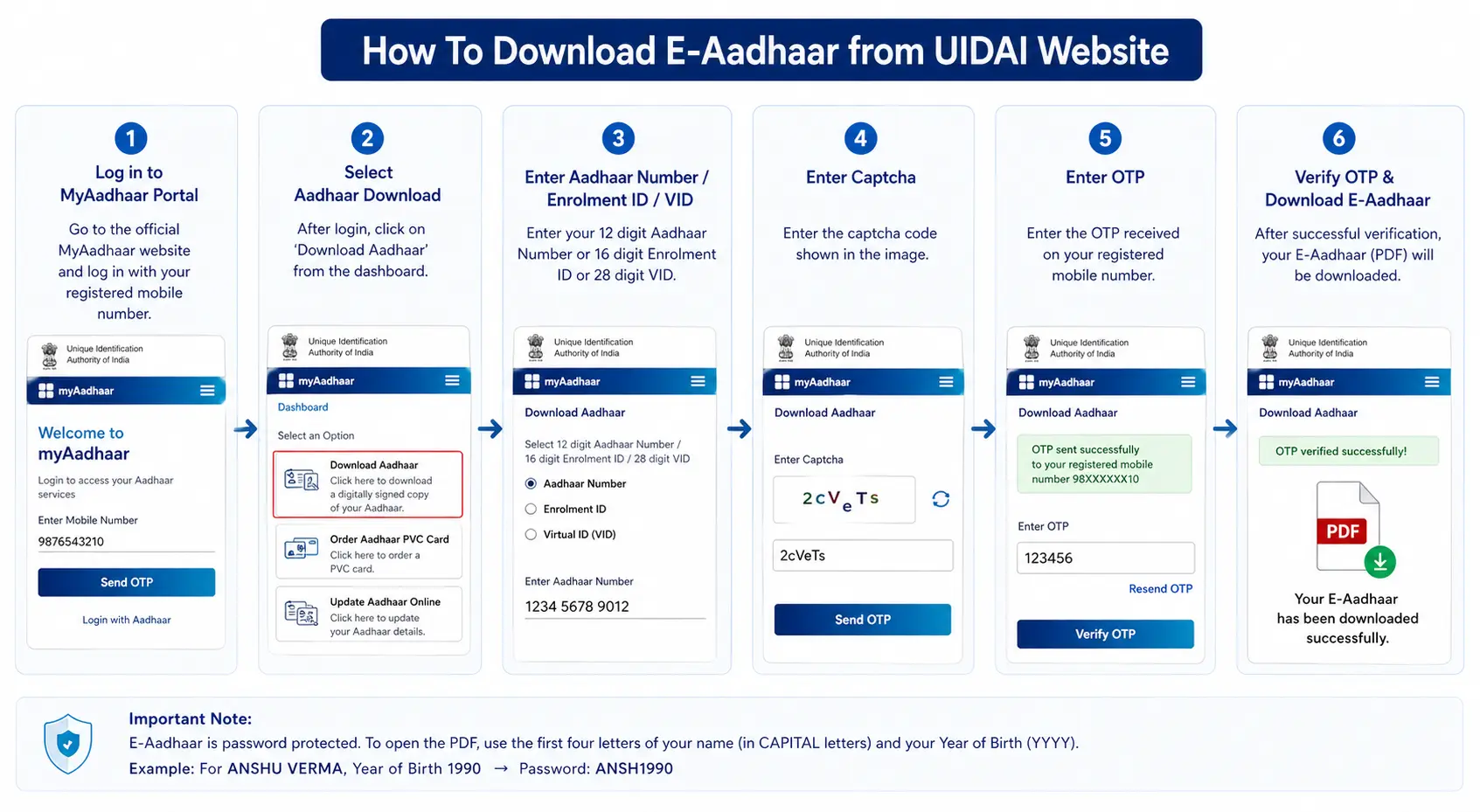
Once all is said and done, the file is then downloaded into the system in PDF form. However, it is only at this point where the user will need to enter the e aadhar password.
These web services by UIDAI make it possible despite any changes in screen labels or UI design.
Here comes a point to draw the line. Downloading a file and opening a file is not one and the same process. Many individuals complete the process of OTP and expect that the PDF will be opened immediately after that. Instead, they receive a request to enter the password.
It is at this point that people start searching how to open aadhar pdf, since they managed to download the document but still could not open it.
The most convenient way would be to consider it in stages. First, you are given the opportunity to access the file via the official website of UIDAI; secondly, you are provided with the necessary password to open the file.
It is during this process that many people mix up the aadhar download password with the OTP even after knowing that both serve completely different purposes.
One of the most misleading terms in this area is Aadhar download password. This term is freely used by everyone in their conversation when referring to something after the download procedure. Yet, there are two aspects in this case.
This approach taken by UIDAI helps to solve the confusion.
The thing is that many users are used to doing both procedures at once. They get the OTP, download the file without any problems and insert the OTP into the PDF password field.
As expected, nothing happens with the file, it does not open. Yet, there is no mistake in the downloaded file, the mistake lies in the user actions.
In practical situations, the ambiguity only escalates since the file is likely to be downloaded in haste. The user will have an urgent need to fill out an application or a form or might be travelling and require identification. Once the OTP procedure is completed, the person becomes aware that the document remains locked.
Knowledge about the distinction between download verification and accessing a PDF helps avoid wasting time.
It is here that most individuals are introduced to the expression “e aadhaar download password.” Common usage of the term tends to be informal, but the technicality remains unchanged: download by means of OTP and unlock the file by using the static Aadhaar password.
Aadhaar pdf password is the code that unlocks the aadhar pdf file that is downloaded. As mentioned in the description by UIDAI, the code for the password is made by the first four letters of the name of the user in Capital letters and the date of birth in the YYYY format.
One important fact to know about this password is that it is consistent regardless of the times when the aadhar card is downloaded. Since the code depends on the information related to aadhar details and not on any particular browser or website used for downloading it, understanding the pattern will make things easier for the future.
This is also relevant because the same question is expressed in various forms by the users.
In most cases, the solution boils down to the UIDAI defined format of the same. It should be noted here that the users often call it an aadhar card password pdf, although the format is still the same as specified by UIDAI.
The biggest reason users fail to open the file is not a technical failure. It is a small input mistake.
These seem like tiny mistakes, but with a locked PDF, even one mismatch is enough to stop the file from opening.
So before assuming something is wrong with the document, it makes more sense to go back to the official rules and check the entry calmly. In most cases, users enter the wrong password for aadhar pdf due to small formatting errors rather than any issue with the file itself.
If you are trying to understand how to open aadhar pdf, the process is actually simple once you know the rule.
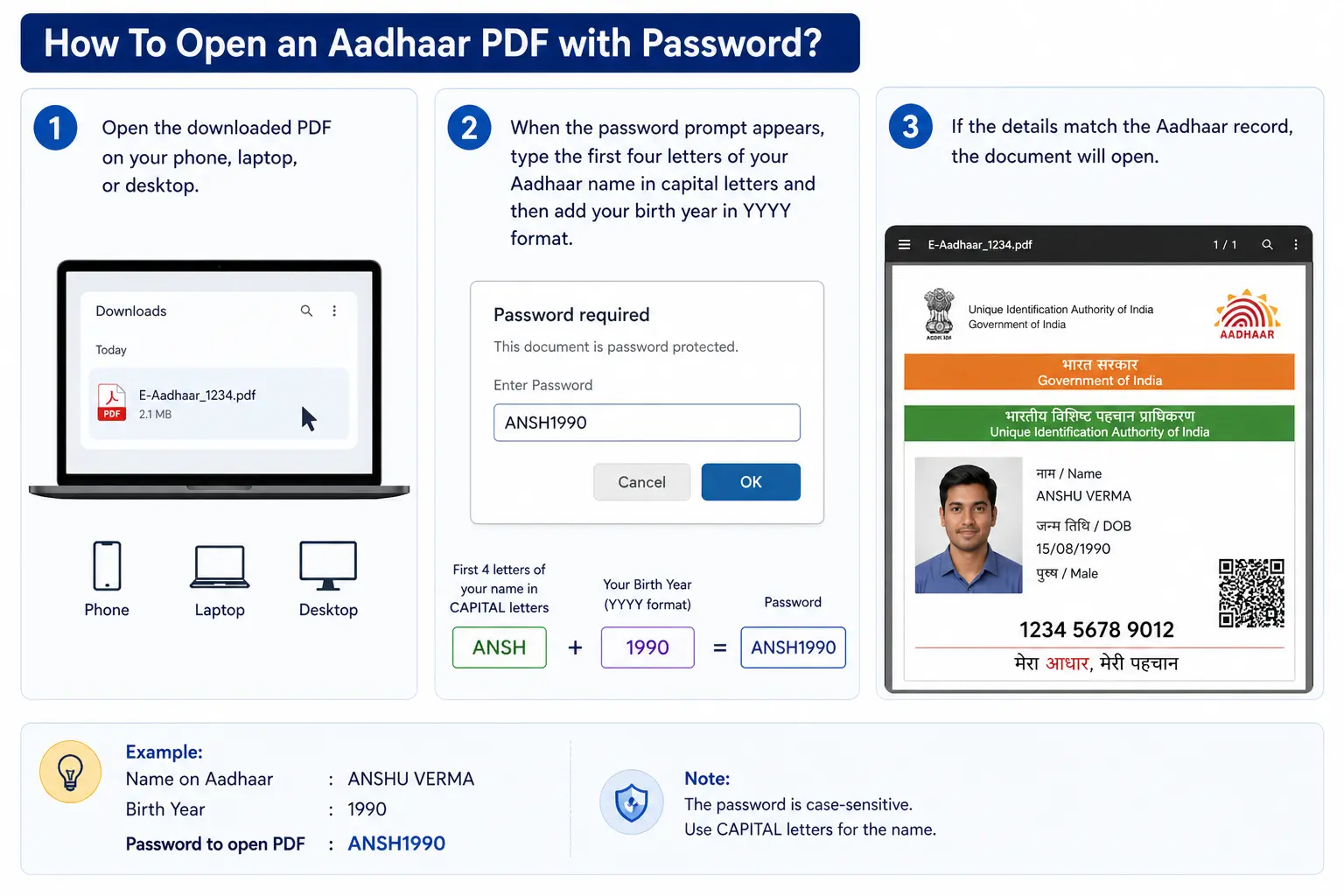
This is also the answer to another common query: how to open aadhar card password after the file has been downloaded.
The PDF is not waiting for an OTP, a hidden code, or a separate email. It is waiting for the identity-based format already defined by UIDAI. Once users understand that, the problem becomes far less intimidating.
The same logic also explains how to open aadhar card with password across different official download channels. No matter the source, the aadhaar open password remains the same and follows the standard UIDAI format. Whether the file came from the UIDAI portal, the official app, or another approved source, the unlocking rule stays the same.
In that sense, the password to open aadhar card is not an extra hurdle. It is simply the final step in viewing a protected identity document.
There is no need to rely on unofficial apps, random websites, or confusing tutorials. If the file is official and the format is entered correctly, it should open. Most failed attempts come down to spelling, capitalisation, or birth-year errors rather than any system problem.
UIDAI describes mAadhaar as its official mobile application and states that it allows users to access Aadhaar services, download Aadhaar, generate Virtual IDs, and use other Aadhaar-related features. UIDAI also notes that the app requires a registered mobile number for authentication.
For users who prefer mobile access over browser-based access, this is helpful. Instead of opening the website every time, they can use the official app for Aadhaar-related needs.
The broad process usually involves:
This route is especially useful for people who travel often, rely heavily on their phones, or prefer storing important documents digitally rather than on paper. It also reduces dependence on browsers, downloaded screenshots, or old forwarded files that may not be the latest version.
Even here, though, one thing remains unchanged. Once the file is downloaded in PDF form, the same official Aadhaar-based opening rule continues to apply. The app may change how you access the file, but it does not remove the security logic attached to the document.
DigiLocker is a government-backed digital document platform under the Digital India framework.
DigiLocker says it gives citizens access to authentic digital documents through a secure cloud-based system, and its FAQ explains that users can go to the issued documents section to view or download their digital Aadhaar. DigiLocker also notes that issued documents are fetched in real time from the issuing agency.
In practical use, the process is usually straightforward.
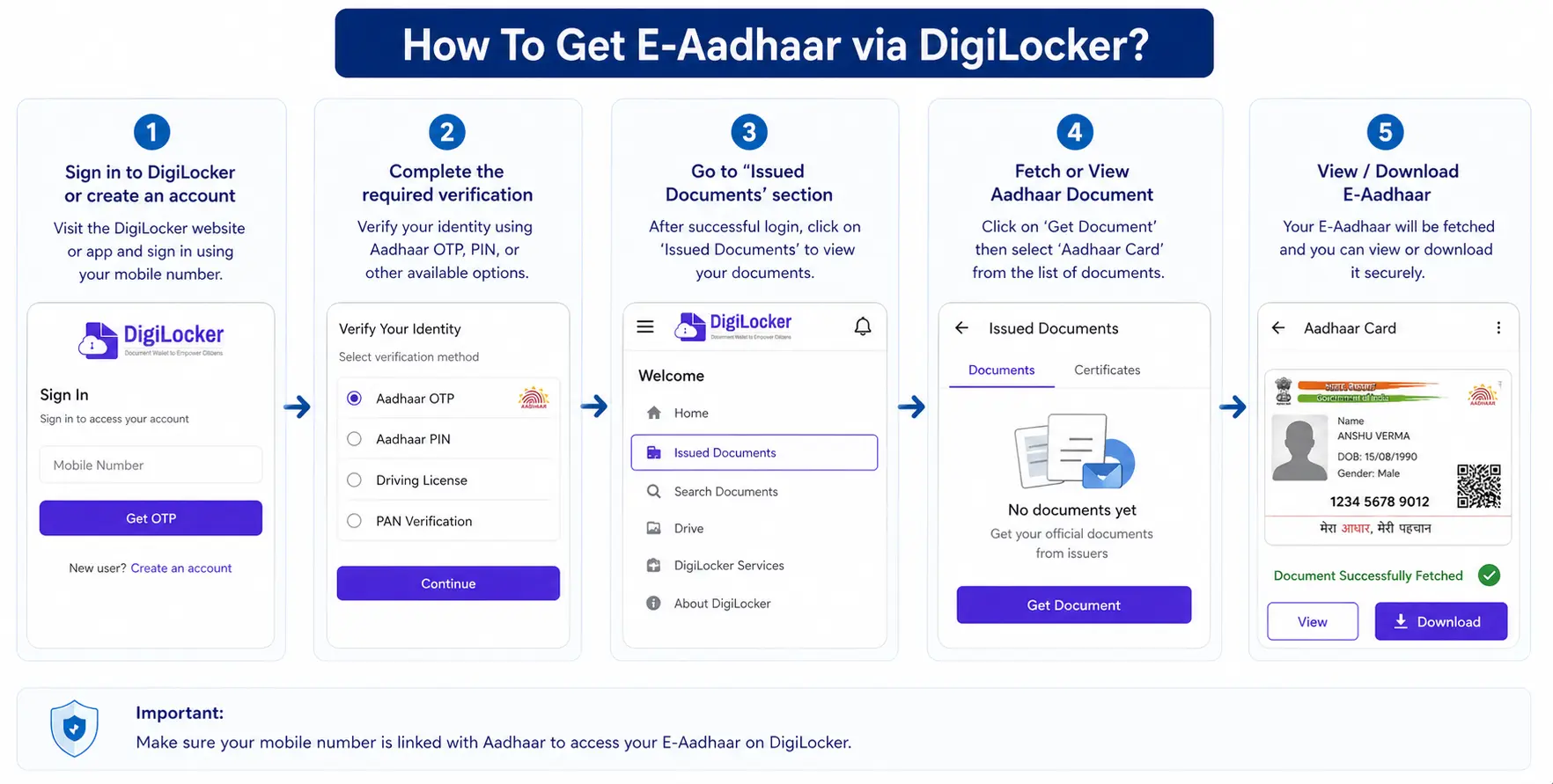
This makes DigiLocker useful for people who prefer keeping multiple official records in one trusted digital place rather than saving copies across different folders and devices.
The convenience here is real.
If someone needs identity proof while travelling, attending an interview, completing admission paperwork, or submitting documents on short notice, DigiLocker can help them access official records quickly. It also reduces the need to keep forwarding old attachments to oneself over chat or email.
Another advantage is confidence in source. Since issued documents are linked to authorised issuers, users do not have to wonder whether the file is a stale copy saved months ago. That makes DigiLocker a practical companion to the UIDAI website and the mAadhaar app in the broader digital document ecosystem.
This is the point where many users overcomplicate the issue. The Aadhaar PDF opening rule is not a custom password created by the user, so there is no separate reset flow in the way people expect from social media, email, or banking apps.
If you think you forgot it, the right move is to rebuild it using the official rule instead of searching for a reset option.
Start with the exact Aadhaar name. Use the first four letters in capital letters. Then add the birth year only, not the full date. If the name has fewer than four letters, use the available letters. If the name includes punctuation or initials, do not ignore them casually. UIDAI’s examples are especially useful in these edge cases because they show how the format behaves with short names and punctuation-heavy records.
If the file still does not open, slow down and check the basics.
In most real-world cases, the issue turns out to be one of these minor mismatches.
If the bigger problem is that you cannot access Aadhaar at all because your number, details, or download route is not working, then the issue is no longer about the PDF-opening rule. In that case, the better approach is to use UIDAI’s official Aadhaar service ecosystem for retrieval, update, or re-download support.
A registered mobile number is essential for Aadhaar online services. UIDAI explicitly states that if a resident has not registered a mobile number during enrolment, the person is required to visit a Permanent Enrolment Centre to get it registered. UIDAI also states that mobile number updates can be done by visiting an Aadhaar Enrolment Centre.
This is important because many users assume they can fix everything online instantly. That is not always the case. If your registered number is outdated, inactive, or unavailable, you may not receive the OTP needed for download and verification. In such a case, the real solution is not trying different devices again and again. The solution is updating the number through the official enrolment or update process.
The broad journey usually involves:
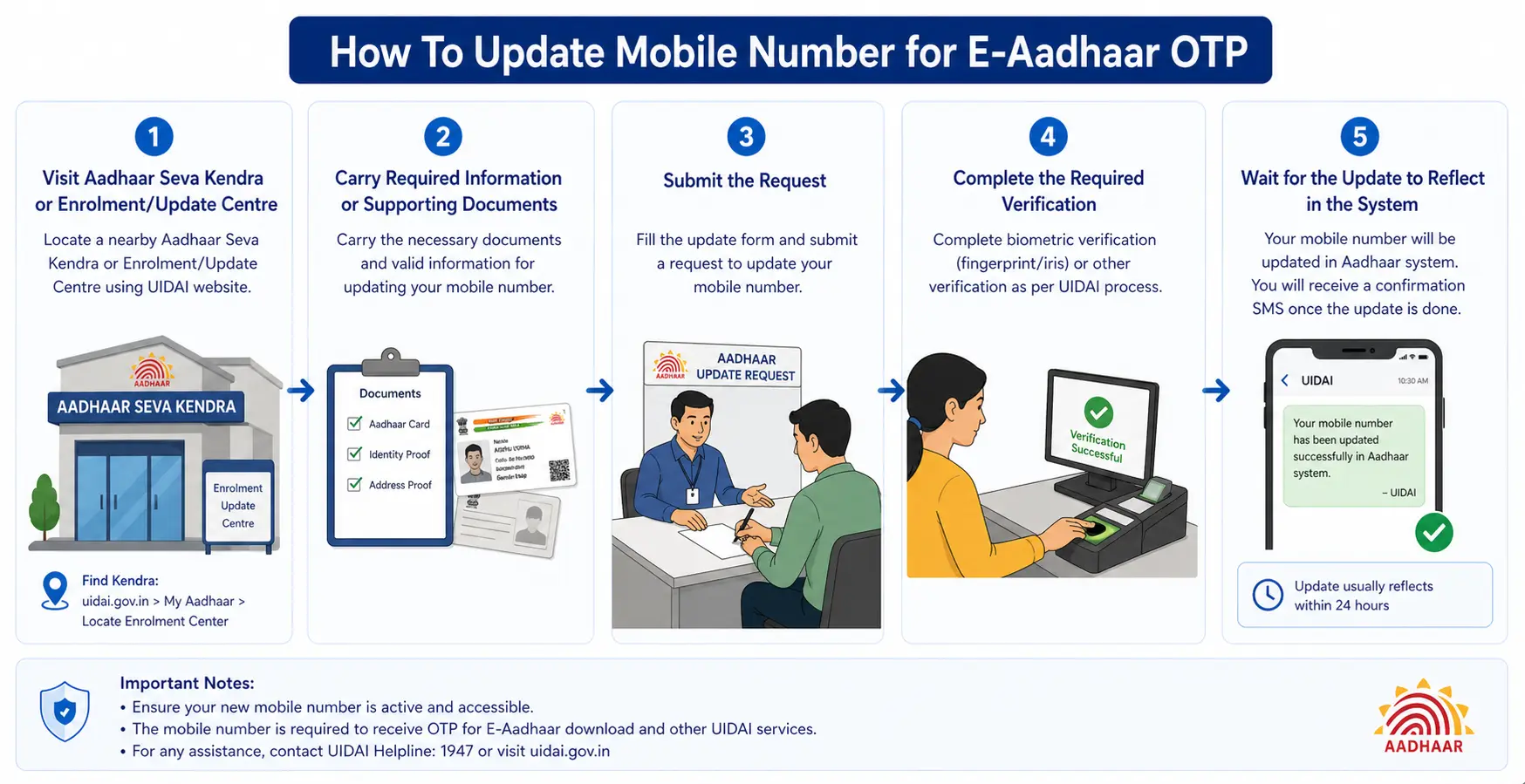
UIDAI also provides appointment-related support through its Aadhaar Seva Kendra framework. Once the mobile number is updated successfully, the OTP-based steps for Aadhaar access become much smoother.
Many people assume the issue lies with the website or the app, but in reality the problem often begins with an old phone number that is no longer linked correctly.
E-Aadhaar makes life easier, but it should still be treated like a sensitive identity document.





Leave a comment